Quote Takeoff

Home

File
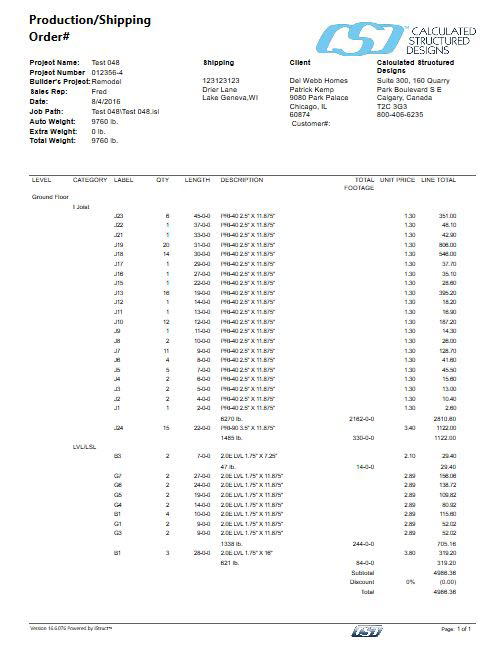
This Prints the Quote
Save as Default
Saves the Defaults of the Quote Setup. This includes Settings, Products and Export.
Font and Text Part
Font and Text Part control the font type, font size, and which part of the quote the user would like to apply changes to. Example: Main Title, Body, Table Header or Table Body
Note
User can apply a note that will be reflected on the Quote Report.
Alignment
This is to place note at Left, Center, Right alignment
Style
Save Style
Saves the Style (Quote template) so user can apply to future quotes.
Apply Style
Applies different Styles to the Quote. User can have multiple styles for multiple customers if preferred.
Settings

Tax 1/ Tax 2
Allows Multiple tax description and percentage to be applied to the Quote.
Markup/Discount
Gives the user the capability to add either a quote or order #. Different markups and discounts using percentages. User also has the capability of turning off and on various items on the quote. Example: Subtotals, Unit Prices, Line Totals, Weights, etc.
Client
User can add Client Title and Client Info to the Quote Report. By choosing Client this will pull information from the Client Info added in Options/ People&Places
Options
Clicking on any one of these three items will add the info of that category to the Quote Report. Example: Clicking on cost will add the users cost to the Quote vs. the Sales Price.
Products

Selection and Sort
Allows user to select which materials in which order and which sort order they would prefer to see the products on their Quote Report
Options
Additional editing features for materials on the Quote.
Levels
Allows the user to select one or all of the levels associated with this Quote. Combine Levels combines all the levels in the job.
Edit
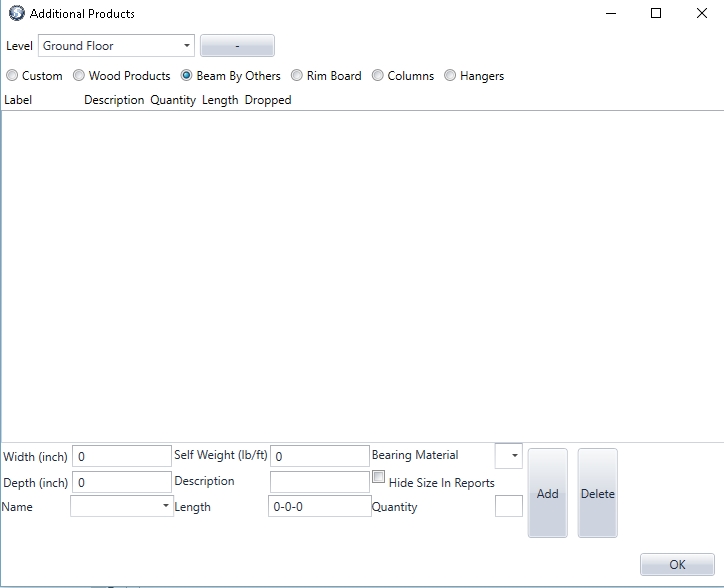
Additional Products
As with adding additional products in isPlan® the same feature applies in the Quote. Users can add multiple products that aren't automatically selected from isPlan® and can apply them to the Quote for pricing and takeoff
Panel
Allows for insert of panel materials for pricing and takeoff.
Export

Export
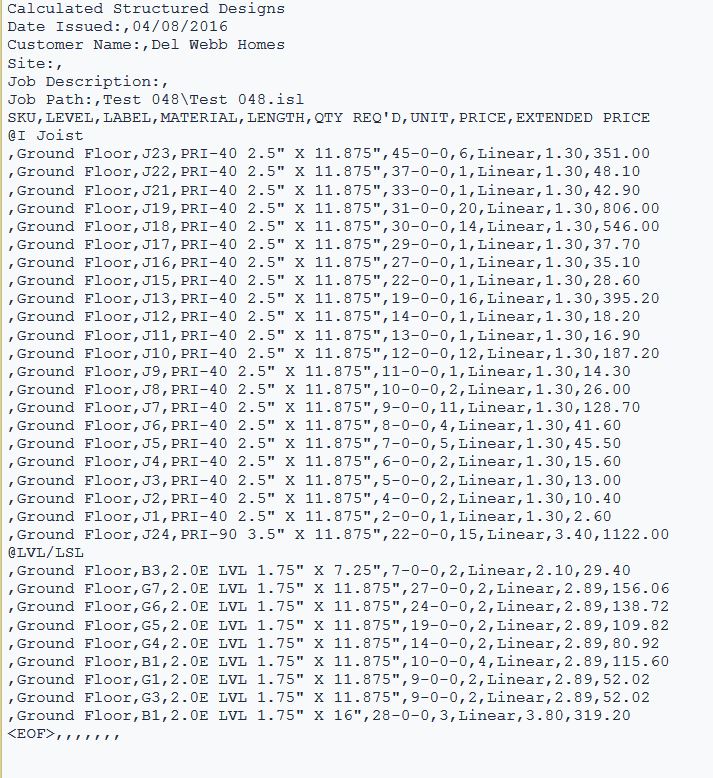
Clicking this icon creates the Quote export to be opened by other compatible software. Example: This is commonly used to Export to existing point of sale systems.
Export Options
Gives user capability of selecting specific fields to be included in the Export.
Export Fields
Allows user to arrange the order of the fields to be included in the Export.